For many US users, buying a USB 3 cable promises blazing-fast data transfers — up to 5 Gbps in theory for USB 3.0, and even higher for later versions. Yet in reality, you may notice your files moving much slower than expected. Whether you’re transferring a large batch of high-resolution photos, backing up videos to an external drive, or moving project files between systems, slow speeds can be frustrating — especially when you thought you invested in the right cable.
The reason your USB 3 cable isn’t delivering full speed could be simple or complex. Sometimes it’s the cable itself; other times, the connected devices, ports, settings, or even your usage pattern are holding back performance. This guide breaks down exactly why your cable might not be living up to its potential and what you can do to fix it.
Understanding the Basics of USB 3 Technology
Before diagnosing problems, it’s helpful to understand what a USB 3 cable is meant to do. USB 3.0, the first in the USB 3 family, introduced a big leap over USB 2.0’s 480 Mbps limit. Officially rated for up to 5 Gbps, USB 3.1 Gen 2 doubles that to 10 Gbps, and USB 3.2 and USB4 promise even more.
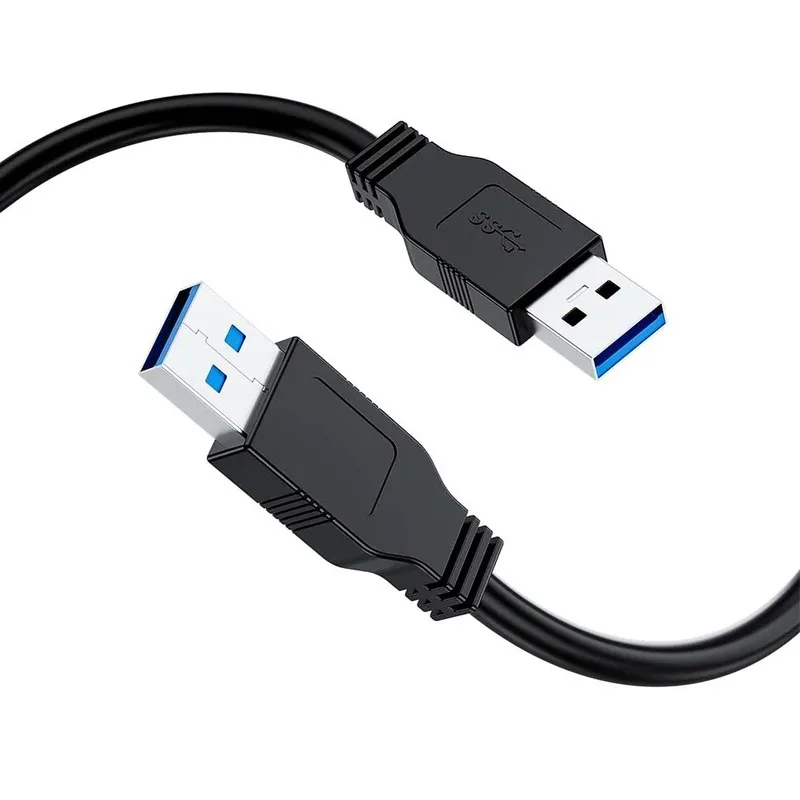
A proper USB 3 cable has extra internal wiring to support these speeds. It includes additional pins compared to older USB 2 cables — that’s how the connection can handle more data lanes simultaneously. Physically, USB 3 Type-A connectors often feature blue plastic inside, but this is not a universal rule. Type-C connectors, now common in US devices, can carry USB 3 speeds without color cues.
Knowing the versions helps set expectations. Just because your device’s port is USB 3 doesn’t mean your cable automatically negotiates the highest possible speed. The cable’s rating, device capabilities, and even the file transfer type play roles.
Cable Quality and Specification Mismatch
One of the most common reasons a USB 3 cable underperforms is quality — not all cables are equal. Cheaper or counterfeit cables may be labeled “USB 3” but lack the internal construction required for high-speed transfer. In the US market, counterfeit electronics remain a challenge, especially through unverified third-party sellers online.
Key points to check:
- Markings or certification: Look for USB-IF (USB Implementers Forum) certification.
- Physical design: A thick cable often — but not always — indicates adequate shielding and more robust wiring.
- Connector integrity: Poorly built connectors can cause micro-interruptions, slowing effective speed.
Even legitimate cables may be mismatched to your device’s specs. For example, a USB 3.2 device needs a cable rated for USB 3.2 to hit its peak speed. Using a USB 3.0-only cable will bottleneck performance.
Device and Port Limitations
The USB 3 cable might be perfectly fine, but the devices at each end can’t match its maximum speed. External drives themselves have read/write limits — a mechanical hard drive, even connected via USB 3, rarely approaches 5 Gbps transfer rates; solid-state drives (SSDs) are faster but still have upper bounds.
Ports matter too. Many US laptop models include mixed-generation ports. One port may support USB 3 while another only offers USB 2-level performance. Sometimes, the ports are on the same physical panel but differ internally — meaning plugging into the wrong one slows transfer.
Additionally, internal storage speeds on your source or destination device play a role. If your built-in drive is slow to read or write, your cable can’t compensate. Verifying true USB 3 performance requires matching the cable with high-speed endpoint devices and appropriate ports.
Software, Drivers, and Settings
Even with flawless hardware, outdated or incorrect drivers can prevent full use of a USB 3 cable. On Windows, for example, the correct USB 3 driver must be installed and active. On macOS or Linux, driver faults are rarer but connection recognition issues can still happen.
Some systems revert to USB 2.0 mode if they detect inconsistencies — this drop in negotiation can be caused by low-quality cables or unstable connections. Checking the Device Manager (Windows) or System Report (macOS) can confirm whether your connection is running at the correct USB protocol level.
Background processes slow things down too. If you’re transferring data while your computer is indexing files, running antivirus scans, or performing active downloads, resources will be divided, reducing perceived transfer speeds.
Cable Length and Signal Interference
Longer USB 3 cables are more prone to speed issues. While short cables of under two meters usually retain full performance, extended lengths can suffer from signal degradation. Electrical interference from nearby devices may also affect stability — especially in office setups with multiple powered electronics.
Proper shielding in quality cables helps counter interference, but cheap cables often skimp on this. US households with home offices cluttered by chargers, monitors, and other peripherals may need to route cables carefully away from high-interference zones.
If you require longer reach, consider active USB 3 cables or repeaters that maintain signal integrity over extended distances.
Testing and Troubleshooting Your Cable
If you suspect your USB 3 cable is underperforming, testing can confirm it. Free software tools in the US — like CrystalDiskMark (Windows) or Blackmagic Disk Speed Test (macOS) — let you measure read/write speeds directly. Testing different cables with the same devices and ports isolates whether the cable is at fault.
Swap ends, try other ports, and note performance changes. Clean connections with compressed air to remove dust buildup. Ensure connectors insert fully; a partial connection may drop negotiation speed without obvious errors.
Tracking these tests gives you actionable data: consistent underperformance across cables points to device limitations, while one cable repeatedly lagging signals a replacement is needed.
Best Practices for Maintaining Full Speed
To consistently enjoy high performance from a USB 3 cable:
- Use certified cables from reputable US sellers.
- Match cable specs to device capabilities — don’t pair USB 3.2 devices with USB 3.0-only cables if speed is critical.
- Keep cable lengths reasonable or use active solutions for extended runs.
- Update drivers and operating systems regularly.
- Avoid high-interference placement.
Making these part of routine tech maintenance ensures your cable keeps delivering optimal speeds across multiple devices and environments.
Final Thoughts
Your USB 3 cable is a key link in fast data transfer. If it’s not reaching full speed, the cause may range from poor-quality construction and mismatched specs to device limits, cable length, or even software issues. By understanding these factors and applying targeted fixes, US users can maximize performance, reduce frustration, and get the most value from their tech investments.
In short, selecting the right cable, maintaining proper conditions, and staying mindful of connected hardware will allow your USB 3 setup to deliver the speed you expect — every time.